> ## Documentation Index
> Fetch the complete documentation index at: https://cometchat-22654f5b-docs-ios-ui-kit-sdk-fixes.mintlify.site/llms.txt
> Use this file to discover all available pages before exploring further.
# Flutter Push Notifications (iOS)
> CometChat push notifications in Flutter apps on iOS using Apple Push Notification service (APNs).
Reference implementation of Flutter UI Kit, APNs and Push Notification Setup.
## What this guide covers
* CometChat dashboard setup (enable push, create APNs + optional VoIP/FCM providers) with screenshots.
* Apple + Firebase setup (entitlements, APNs key, `GoogleService-Info.plist`).
* Copying the sample notification stack and aligning package IDs/provider IDs.
* Token registration, navigation from pushes, testing, and troubleshooting.
## How FCM + CometChat work together
* **APNs is primary on iOS:** FCM can be used only as a bridge. Firebase hands the payload to APNs using the APNs key you uploaded in Firebase.
* **CometChat providers:** The APNs/VoIP/FCM providers you create in the CometChat dashboard hold your Apple/FCM credentials. `CometChatPushRegistry.register(token, isFcm: false, isVoip: ...)` binds the APNs/VoIP tokens; `isFcm: true` uses the FCM provider if you decide to register FCM tokens too.
* **Flow:** Permission prompt → APNs (and/or FCM) token issued → after `CometChatUIKit.login` succeeds, register tokens with `CometChatPushRegistry` using the matching provider IDs → CometChat sends to FCM/APNs → APNs delivers to the device → Flutter handles taps via `NotificationLaunchHandler` and `APNSService`.
## 1. Enable push and add providers (CometChat Dashboard)
1. Go to **Notifications → Settings** and enable **Push Notifications**.
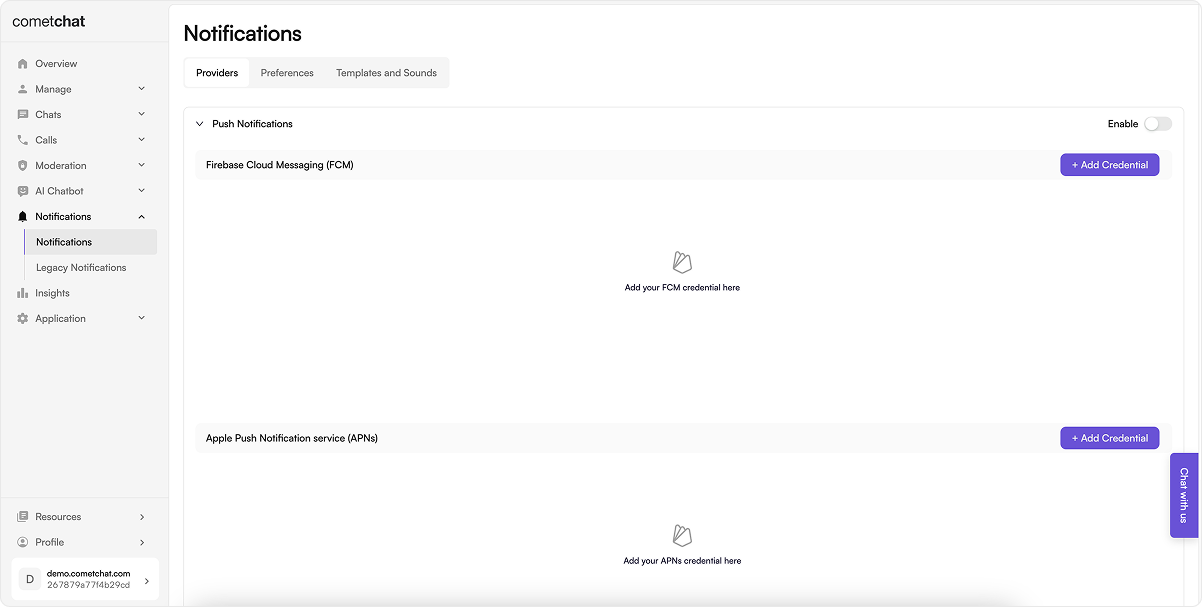 2. Click **Add Credentials**, choose **APNs** (and **APNs VoIP** if you want in-call pushes), upload your `.p8` key or certificate, and copy each Provider ID.
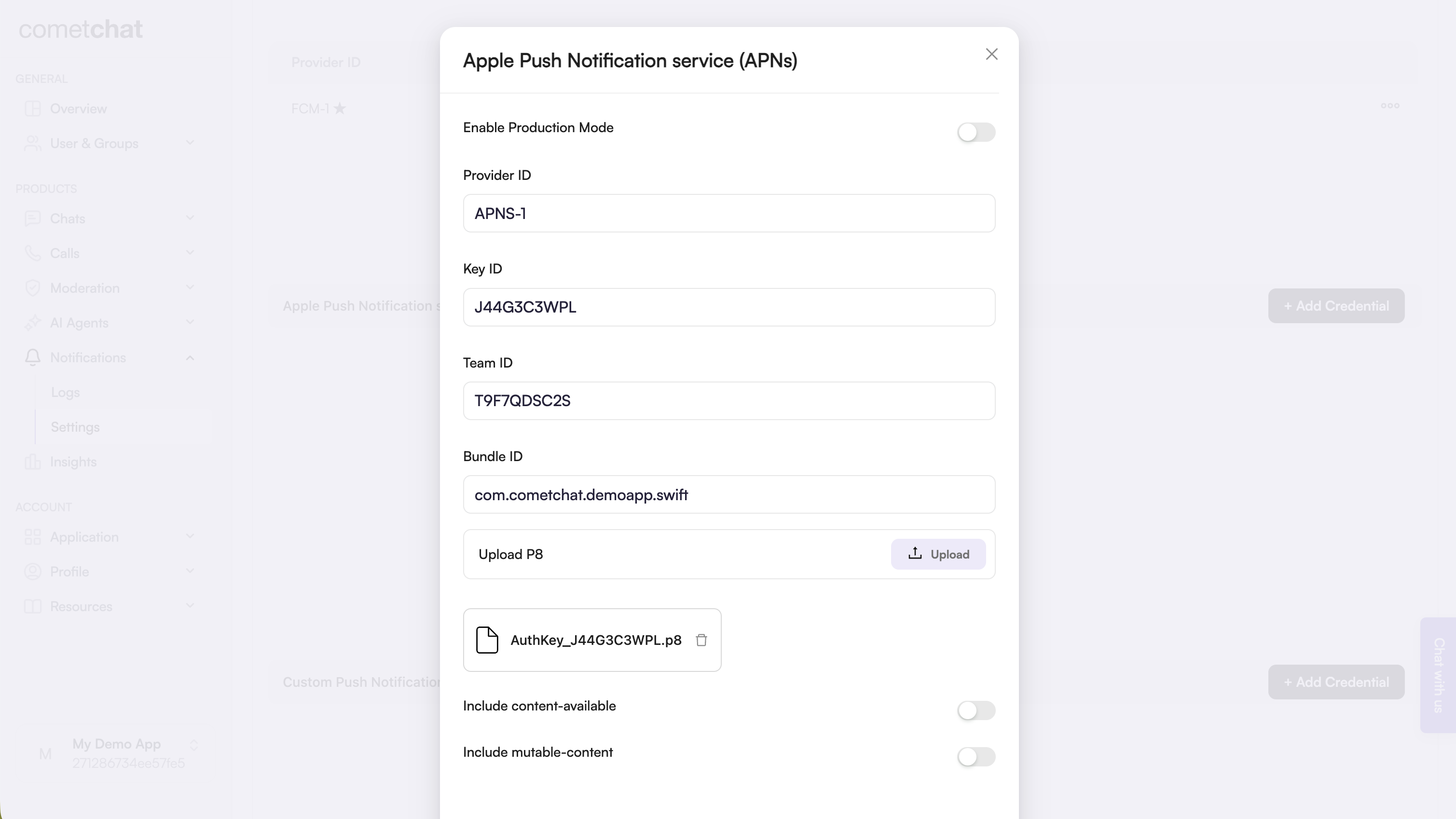 3. (Optional) Add an **FCM** provider if you plan to register FCM tokens on iOS.
 Keep the provider IDs—you’ll set them in `CometChatConfig`.
## 2. Prepare Apple + Firebase credentials
### 2.1 Apple Developer portal
1. Generate an APNs Auth Key (`.p8`) and note the **Key ID** and **Team ID**.
2. Enable Push Notifications plus Background Modes → *Remote notifications* and *Voice over IP* on the bundle ID.
3. Create a VoIP Services certificate/key if you want separate credentials.
### 2.2 Firebase Console
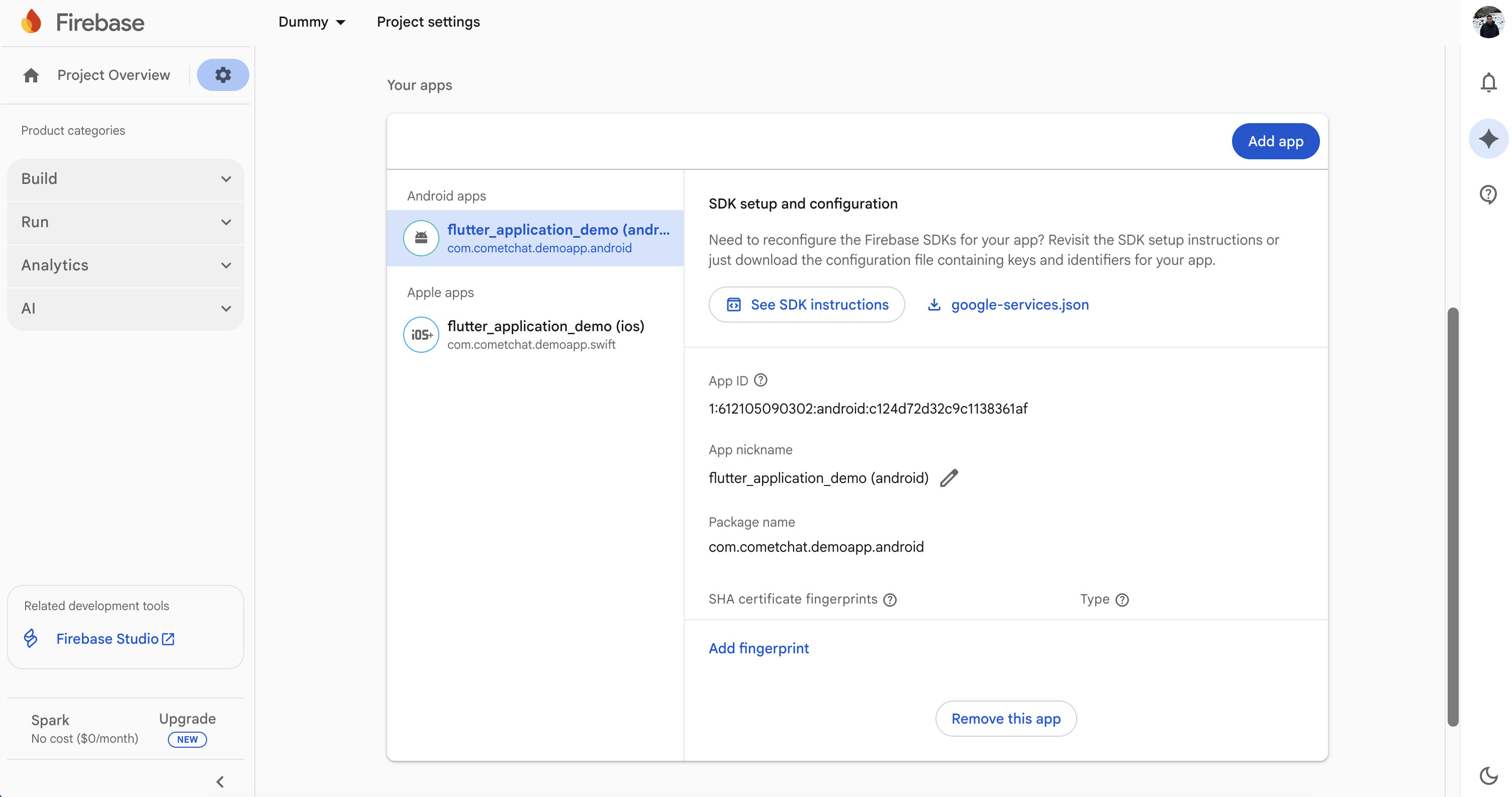
1. Register the same bundle ID and download `GoogleService-Info.plist` into `ios/Runner`.
2. Enable Cloud Messaging and upload the APNs key under *Project Settings → Cloud Messaging*.
Keep the provider IDs—you’ll set them in `CometChatConfig`.
## 2. Prepare Apple + Firebase credentials
### 2.1 Apple Developer portal
1. Generate an APNs Auth Key (`.p8`) and note the **Key ID** and **Team ID**.
2. Enable Push Notifications plus Background Modes → *Remote notifications* and *Voice over IP* on the bundle ID.
3. Create a VoIP Services certificate/key if you want separate credentials.
### 2.2 Firebase Console
1. Register the same bundle ID and download `GoogleService-Info.plist` into `ios/Runner`.
2. Enable Cloud Messaging and upload the APNs key under *Project Settings → Cloud Messaging*.
 ## 3. Local configuration file
Update [`lib/cometchat_config.dart`](https://github.com/cometchat/cometchat-uikit-flutter/blob/v5/sample_app_push_notifications/lib/cometchat_config.dart) (or your own config file) so it exposes:
```dart lines theme={null}
class CometChatConfig {
static const appId = "YOUR_APP_ID";
static const region = "YOUR_APP_REGION";
static const authKey = "YOUR_AUTH_KEY";
static const fcmProviderId = "FCM-PROVIDER-ID";
static const apnProviderId = "APNS-PROVIDER-ID";
static const apnVoipProviderId = "APNS-VOIP-PROVIDER-ID"; // optional but recommended
}
```
## 4. Bring the notification stack into Flutter
### 4.1 Copy [`lib/notifications`](https://github.com/cometchat/cometchat-uikit-flutter/tree/v5/sample_app_push_notifications/lib/notifications)
* Clone or download the sample once.
* Copy the entire [`lib/notifications`](https://github.com/cometchat/cometchat-uikit-flutter/tree/v5/sample_app_push_notifications/lib/notifications) directory (models, Android/iOS services, helpers) into your app.
* Update the import prefixes (for example replace `package:flutter_application_demo/...` with your own package name). Keeping the same folder names avoids manual refactors later.
### 4.2 Wire the entry points
**[`lib/main.dart`](https://github.com/cometchat/cometchat-uikit-flutter/blob/v5/sample_app_push_notifications/lib/main.dart)**
* Initialize `SharedPreferencesClass`, Firebase, and `FlutterLocalNotificationsPlugin` before calling `runApp`.
* Store `NotificationLaunchHandler.pendingNotificationResponse` when the app is opened by tapping a notification while terminated.
* On iOS, call `APNSService.setupNativeCallListener(context)` from `initState` so Flutter reacts when the native CallKit UI changes state.
**[`lib/guard_screen.dart`](https://github.com/cometchat/cometchat-uikit-flutter/blob/v5/sample_app_push_notifications/lib/guard_screen.dart) / [`lib/dashboard.dart`](https://github.com/cometchat/cometchat-uikit-flutter/blob/v5/sample_app_push_notifications/lib/dashboard.dart) (or your first screen after login)**
* Ensure `CometChatUIKit.init()` and `CometChatUIKit.login()` finish before rendering the dashboard.
* Instantiate `APNSService` (iOS only) and call `apnsService.init(context)` inside `initState`.
* Register CometChat UI + Calls listeners (`CometChatUIEventListener`, `CometChatCallEventListener`, and `CallListener`) exactly once per session; the sample stores the listener IDs inside `APNSService`.
* Replay `NotificationLaunchHandler.pendingNotificationResponse` after the widget tree builds so taps from a killed app still navigate to `MessagesScreen`.
* Forward lifecycle changes to `IncomingCallOverlay` / `BoolSingleton` to hide stale overlays when the app resumes.
### 4.3 Align dependencies and configuration
Mirror the sample `pubspec.yaml` versions (update as needed when newer releases ship):
```yaml lines theme={null}
dependencies:
firebase_core: ^3.0.0
firebase_messaging: ^15.0.0
flutter_apns_x: ^2.1.1
flutter_callkit_incoming: ^2.0.3+3
flutter_local_notifications: ^16.0.0
cometchat_chat_uikit: ^5.0.0
cometchat_calls_uikit: ^5.0.0
permission_handler: ^11.3.0
```
Run `flutter pub get`, then `flutterfire configure` if you still need to generate `firebase_options.dart`.
## 5. Configure the native iOS layer
### 5.1 Capabilities and Info.plist
1. Open `ios/Runner.xcworkspace` in Xcode.
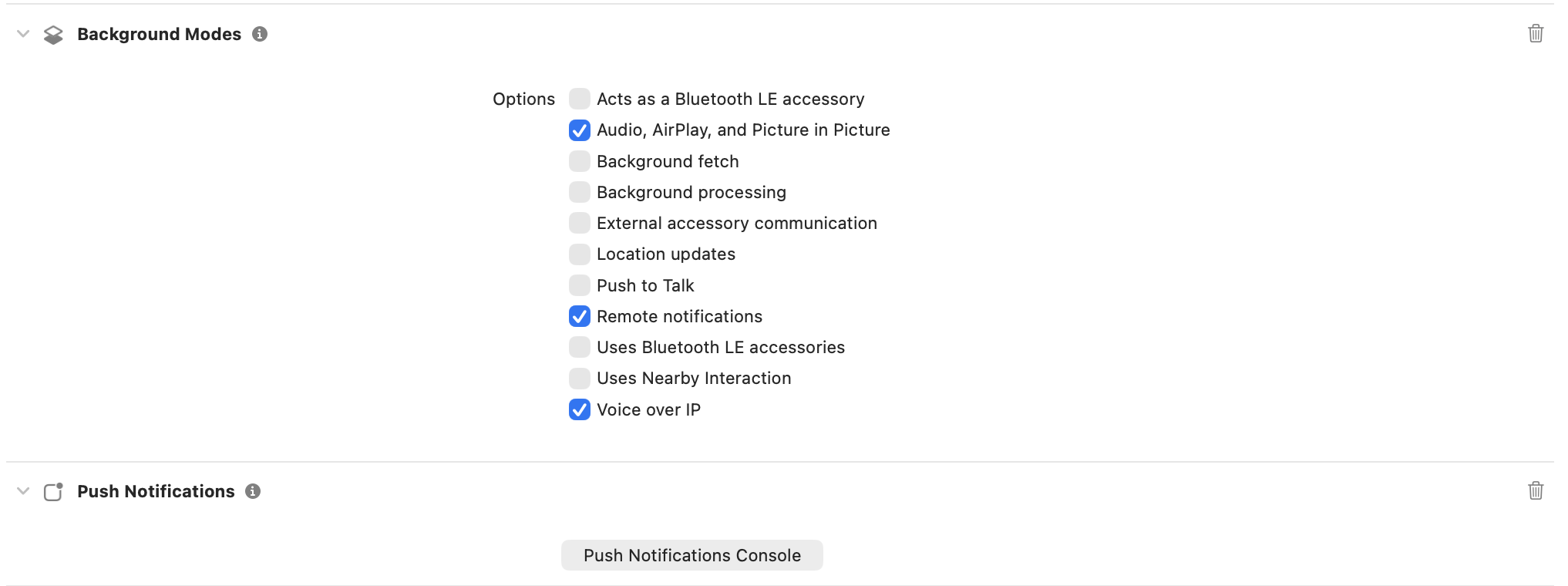
2. Under *Signing & Capabilities*, enable **Push Notifications** and **Background Modes** (Remote notifications + Voice over IP).
3. Add microphone, camera, bluetooth, and notification permission strings to `Info.plist`.
4. Set the development team that has access to the APNs/VoIP keys you generated earlier.
## 3. Local configuration file
Update [`lib/cometchat_config.dart`](https://github.com/cometchat/cometchat-uikit-flutter/blob/v5/sample_app_push_notifications/lib/cometchat_config.dart) (or your own config file) so it exposes:
```dart lines theme={null}
class CometChatConfig {
static const appId = "YOUR_APP_ID";
static const region = "YOUR_APP_REGION";
static const authKey = "YOUR_AUTH_KEY";
static const fcmProviderId = "FCM-PROVIDER-ID";
static const apnProviderId = "APNS-PROVIDER-ID";
static const apnVoipProviderId = "APNS-VOIP-PROVIDER-ID"; // optional but recommended
}
```
## 4. Bring the notification stack into Flutter
### 4.1 Copy [`lib/notifications`](https://github.com/cometchat/cometchat-uikit-flutter/tree/v5/sample_app_push_notifications/lib/notifications)
* Clone or download the sample once.
* Copy the entire [`lib/notifications`](https://github.com/cometchat/cometchat-uikit-flutter/tree/v5/sample_app_push_notifications/lib/notifications) directory (models, Android/iOS services, helpers) into your app.
* Update the import prefixes (for example replace `package:flutter_application_demo/...` with your own package name). Keeping the same folder names avoids manual refactors later.
### 4.2 Wire the entry points
**[`lib/main.dart`](https://github.com/cometchat/cometchat-uikit-flutter/blob/v5/sample_app_push_notifications/lib/main.dart)**
* Initialize `SharedPreferencesClass`, Firebase, and `FlutterLocalNotificationsPlugin` before calling `runApp`.
* Store `NotificationLaunchHandler.pendingNotificationResponse` when the app is opened by tapping a notification while terminated.
* On iOS, call `APNSService.setupNativeCallListener(context)` from `initState` so Flutter reacts when the native CallKit UI changes state.
**[`lib/guard_screen.dart`](https://github.com/cometchat/cometchat-uikit-flutter/blob/v5/sample_app_push_notifications/lib/guard_screen.dart) / [`lib/dashboard.dart`](https://github.com/cometchat/cometchat-uikit-flutter/blob/v5/sample_app_push_notifications/lib/dashboard.dart) (or your first screen after login)**
* Ensure `CometChatUIKit.init()` and `CometChatUIKit.login()` finish before rendering the dashboard.
* Instantiate `APNSService` (iOS only) and call `apnsService.init(context)` inside `initState`.
* Register CometChat UI + Calls listeners (`CometChatUIEventListener`, `CometChatCallEventListener`, and `CallListener`) exactly once per session; the sample stores the listener IDs inside `APNSService`.
* Replay `NotificationLaunchHandler.pendingNotificationResponse` after the widget tree builds so taps from a killed app still navigate to `MessagesScreen`.
* Forward lifecycle changes to `IncomingCallOverlay` / `BoolSingleton` to hide stale overlays when the app resumes.
### 4.3 Align dependencies and configuration
Mirror the sample `pubspec.yaml` versions (update as needed when newer releases ship):
```yaml lines theme={null}
dependencies:
firebase_core: ^3.0.0
firebase_messaging: ^15.0.0
flutter_apns_x: ^2.1.1
flutter_callkit_incoming: ^2.0.3+3
flutter_local_notifications: ^16.0.0
cometchat_chat_uikit: ^5.0.0
cometchat_calls_uikit: ^5.0.0
permission_handler: ^11.3.0
```
Run `flutter pub get`, then `flutterfire configure` if you still need to generate `firebase_options.dart`.
## 5. Configure the native iOS layer
### 5.1 Capabilities and Info.plist
1. Open `ios/Runner.xcworkspace` in Xcode.
2. Under *Signing & Capabilities*, enable **Push Notifications** and **Background Modes** (Remote notifications + Voice over IP).
3. Add microphone, camera, bluetooth, and notification permission strings to `Info.plist`.
4. Set the development team that has access to the APNs/VoIP keys you generated earlier.
 ### 5.2 `AppDelegate.swift` bridge
Start from the sample [`ios/Runner/AppDelegate.swift`](https://github.com/cometchat/cometchat-uikit-flutter/blob/v5/sample_app_push_notifications/ios/Runner/AppDelegate.swift) and keep these pieces intact:
* **MethodChannel handshake** – create a channel that both Flutter and Swift know:
```swift lines theme={null}
let appInfoChannel = FlutterMethodChannel(
name: "com.flutter_application_demo/ios",
binaryMessenger: controller.binaryMessenger
)
```
Handle at least `getAppInfo`, `endCall`, `onCallAcceptedFromNative`, and `onCallEndedFromNative`, mirroring the Dart side (`APNSService.setupNativeCallListener`).
* **Firebase + plugin registration** – call `FirebaseApp.configure()` before `GeneratedPluginRegistrant.register(with: self)`.
* **PushKit** – instantiate `PKPushRegistry`, set `desiredPushTypes = [.voIP]`, and forward the token inside `pushRegistry(_:didUpdate:for:)` via `SwiftFlutterCallkitIncomingPlugin.sharedInstance?.setDevicePushTokenVoIP(tokenHex)`.
* **CallKit** – configure `CXProviderConfiguration`, keep a `CXCallController`, and implement `provider(_:perform: CXAnswerCallAction)` / `provider(_:perform: CXEndCallAction)` so native actions propagate to Flutter.
* **Incoming push handler** – inside `pushRegistry(_:didReceiveIncomingPushWith:)`, convert the CometChat payload into `flutter_callkit_incoming.Data`, set `extra` with the raw payload, and call `showCallkitIncoming(..., fromPushKit: true)`.
* **UUID helper** – reuse `createUUID(sessionid:)` to produce valid `UUID`s from long CometChat session IDs; this lets CallKit correlate calls even if the payload string exceeds 32 characters.
If you change the MethodChannel name in Swift, remember to update `APNSService.platform` in Dart to match.
## 6. Token registration and runtime events
### 6.1 Standard APNs tokens
`APNSService` hooks into `FirebaseMessaging.instance.getAPNSToken()` (and `onTokenRefresh`) before calling:
```dart lines theme={null}
await CometChatPushRegistry.register(
token: token,
isFcm: false,
isVoip: false,
);
```
This registers the device token against the APNs provider selected in `CometChatConfig.apnProviderId`.
### 6.2 VoIP tokens
* Capture the PushKit token in `AppDelegate.pushRegistry(_:didUpdate:for:)`.
* Forward it to Flutter via the MethodChannel or register it directly from Swift by invoking `CometChatPushRegistry` through `SwiftFlutterCallkitIncomingPlugin`.
* If you keep the Dart implementation, emit a MethodChannel call named `onVoipToken` and handle it in `APNSService` by calling `CometChatPushRegistry.register(token: token, isFcm: false, isVoip: true);`.
### 6.3 Local notifications and navigation
* `APNSService._showNotification` displays a local notification when the incoming CometChat message does not belong to the currently open conversation.
* `LocalNotificationService.handleNotificationTap` parses the payload, fetches the relevant user/group, and pushes `MessagesScreen`.
* `NotificationLaunchHandler.pendingNotificationResponse` caches taps triggered while the app is terminated; replay it on the dashboard once the UI is ready.
### 6.4 Call events
* `FlutterCallkitIncoming.onEvent` is already wired inside `APNSService` to accept or end calls initiated by CallKit.
* When native CallKit UI accepts/ends a call, Swift invokes `onCallAcceptedFromNative` / `onCallEndedFromNative` on the MethodChannel; `APNSService` then calls `FlutterCallkitIncoming.setCallConnected` or `CometChat.endCall()` to keep both stacks synchronized.
## 7. Testing checklist
1. Run the app on a physical device in debug first. Grant notification, microphone, camera, and Bluetooth permissions when prompted.
2. Send a message from another user:
* Foreground: a local notification banner shows (unless you are in that chat).
* Background: APNs notification appears, tapping opens the right conversation.
3. Force-quit the app, send another message push, tap it, and confirm `NotificationLaunchHandler` launches `MessagesScreen`.
4. Trigger an incoming CometChat call. Ensure:
* CallKit UI shows contact name, call type, and Accept/Decline.
* Accepting on the lock screen notifies Flutter (`setupNativeCallListener`), starts the call session, and dismisses the native UI when the call ends.
5. Decline the call and confirm both CallKit and Flutter clean up (`BoolSingleton` resets, overlays dismissed).
6. Rotate through Wi-Fi/cellular and reinstall the app to confirm token registration works after refresh events.
## 8. Troubleshooting tips
| Symptom | Quick checks |
| ----------------------------------------- | -------------------------------------------------------------------------------------------------------------------------------------------------------------------------- |
| No VoIP pushes | Entitlements missing? Ensure Push Notifications + Background Modes (VoIP) are enabled and the bundle ID matches the CometChat provider. |
| CallKit UI never dismisses | Make sure `endCall(callUUID:)` reports to `CXProvider`, runs a `CXEndCallAction`, **and** calls `SwiftFlutterCallkitIncomingPlugin.sharedInstance?.endCall`. |
| Flutter never receives native call events | Confirm the MethodChannel names match between Swift and Dart, and `APNSService.setupNativeCallListener` runs inside `initState`. |
| Token registration errors | Double-check `CometChatConfig` provider IDs, and verify you call `registerPushToken` after `CometChatUIKit.login` succeeds. |
| Notification taps ignored | Ensure you replay `NotificationLaunchHandler.pendingNotificationResponse` **after** the navigator key is ready (typically `WidgetsBinding.instance.addPostFrameCallback`). |
### 5.2 `AppDelegate.swift` bridge
Start from the sample [`ios/Runner/AppDelegate.swift`](https://github.com/cometchat/cometchat-uikit-flutter/blob/v5/sample_app_push_notifications/ios/Runner/AppDelegate.swift) and keep these pieces intact:
* **MethodChannel handshake** – create a channel that both Flutter and Swift know:
```swift lines theme={null}
let appInfoChannel = FlutterMethodChannel(
name: "com.flutter_application_demo/ios",
binaryMessenger: controller.binaryMessenger
)
```
Handle at least `getAppInfo`, `endCall`, `onCallAcceptedFromNative`, and `onCallEndedFromNative`, mirroring the Dart side (`APNSService.setupNativeCallListener`).
* **Firebase + plugin registration** – call `FirebaseApp.configure()` before `GeneratedPluginRegistrant.register(with: self)`.
* **PushKit** – instantiate `PKPushRegistry`, set `desiredPushTypes = [.voIP]`, and forward the token inside `pushRegistry(_:didUpdate:for:)` via `SwiftFlutterCallkitIncomingPlugin.sharedInstance?.setDevicePushTokenVoIP(tokenHex)`.
* **CallKit** – configure `CXProviderConfiguration`, keep a `CXCallController`, and implement `provider(_:perform: CXAnswerCallAction)` / `provider(_:perform: CXEndCallAction)` so native actions propagate to Flutter.
* **Incoming push handler** – inside `pushRegistry(_:didReceiveIncomingPushWith:)`, convert the CometChat payload into `flutter_callkit_incoming.Data`, set `extra` with the raw payload, and call `showCallkitIncoming(..., fromPushKit: true)`.
* **UUID helper** – reuse `createUUID(sessionid:)` to produce valid `UUID`s from long CometChat session IDs; this lets CallKit correlate calls even if the payload string exceeds 32 characters.
If you change the MethodChannel name in Swift, remember to update `APNSService.platform` in Dart to match.
## 6. Token registration and runtime events
### 6.1 Standard APNs tokens
`APNSService` hooks into `FirebaseMessaging.instance.getAPNSToken()` (and `onTokenRefresh`) before calling:
```dart lines theme={null}
await CometChatPushRegistry.register(
token: token,
isFcm: false,
isVoip: false,
);
```
This registers the device token against the APNs provider selected in `CometChatConfig.apnProviderId`.
### 6.2 VoIP tokens
* Capture the PushKit token in `AppDelegate.pushRegistry(_:didUpdate:for:)`.
* Forward it to Flutter via the MethodChannel or register it directly from Swift by invoking `CometChatPushRegistry` through `SwiftFlutterCallkitIncomingPlugin`.
* If you keep the Dart implementation, emit a MethodChannel call named `onVoipToken` and handle it in `APNSService` by calling `CometChatPushRegistry.register(token: token, isFcm: false, isVoip: true);`.
### 6.3 Local notifications and navigation
* `APNSService._showNotification` displays a local notification when the incoming CometChat message does not belong to the currently open conversation.
* `LocalNotificationService.handleNotificationTap` parses the payload, fetches the relevant user/group, and pushes `MessagesScreen`.
* `NotificationLaunchHandler.pendingNotificationResponse` caches taps triggered while the app is terminated; replay it on the dashboard once the UI is ready.
### 6.4 Call events
* `FlutterCallkitIncoming.onEvent` is already wired inside `APNSService` to accept or end calls initiated by CallKit.
* When native CallKit UI accepts/ends a call, Swift invokes `onCallAcceptedFromNative` / `onCallEndedFromNative` on the MethodChannel; `APNSService` then calls `FlutterCallkitIncoming.setCallConnected` or `CometChat.endCall()` to keep both stacks synchronized.
## 7. Testing checklist
1. Run the app on a physical device in debug first. Grant notification, microphone, camera, and Bluetooth permissions when prompted.
2. Send a message from another user:
* Foreground: a local notification banner shows (unless you are in that chat).
* Background: APNs notification appears, tapping opens the right conversation.
3. Force-quit the app, send another message push, tap it, and confirm `NotificationLaunchHandler` launches `MessagesScreen`.
4. Trigger an incoming CometChat call. Ensure:
* CallKit UI shows contact name, call type, and Accept/Decline.
* Accepting on the lock screen notifies Flutter (`setupNativeCallListener`), starts the call session, and dismisses the native UI when the call ends.
5. Decline the call and confirm both CallKit and Flutter clean up (`BoolSingleton` resets, overlays dismissed).
6. Rotate through Wi-Fi/cellular and reinstall the app to confirm token registration works after refresh events.
## 8. Troubleshooting tips
| Symptom | Quick checks |
| ----------------------------------------- | -------------------------------------------------------------------------------------------------------------------------------------------------------------------------- |
| No VoIP pushes | Entitlements missing? Ensure Push Notifications + Background Modes (VoIP) are enabled and the bundle ID matches the CometChat provider. |
| CallKit UI never dismisses | Make sure `endCall(callUUID:)` reports to `CXProvider`, runs a `CXEndCallAction`, **and** calls `SwiftFlutterCallkitIncomingPlugin.sharedInstance?.endCall`. |
| Flutter never receives native call events | Confirm the MethodChannel names match between Swift and Dart, and `APNSService.setupNativeCallListener` runs inside `initState`. |
| Token registration errors | Double-check `CometChatConfig` provider IDs, and verify you call `registerPushToken` after `CometChatUIKit.login` succeeds. |
| Notification taps ignored | Ensure you replay `NotificationLaunchHandler.pendingNotificationResponse` **after** the navigator key is ready (typically `WidgetsBinding.instance.addPostFrameCallback`). |