Reference for CometChat iOS UI Kit MessageTemplate that defines the structure and behavior of message bubbles including header, content, footer, and bottom views.
Quick Reference for AI Agents & Developers
Class:CometChatMessageTemplate
Import:import CometChatUIKitSwift
Structure: Header view → Content view → Footer view → Bottom view → Status info view
A MessageTemplate provides you with the capability to define and customize both the structure and the behavior of the MessageBubble. It acts as a schema or design blueprint for the creation of a variety of MessageBubble components, allowing you to manage the appearance and interactions of MessageBubble within your application effectively and consistently.
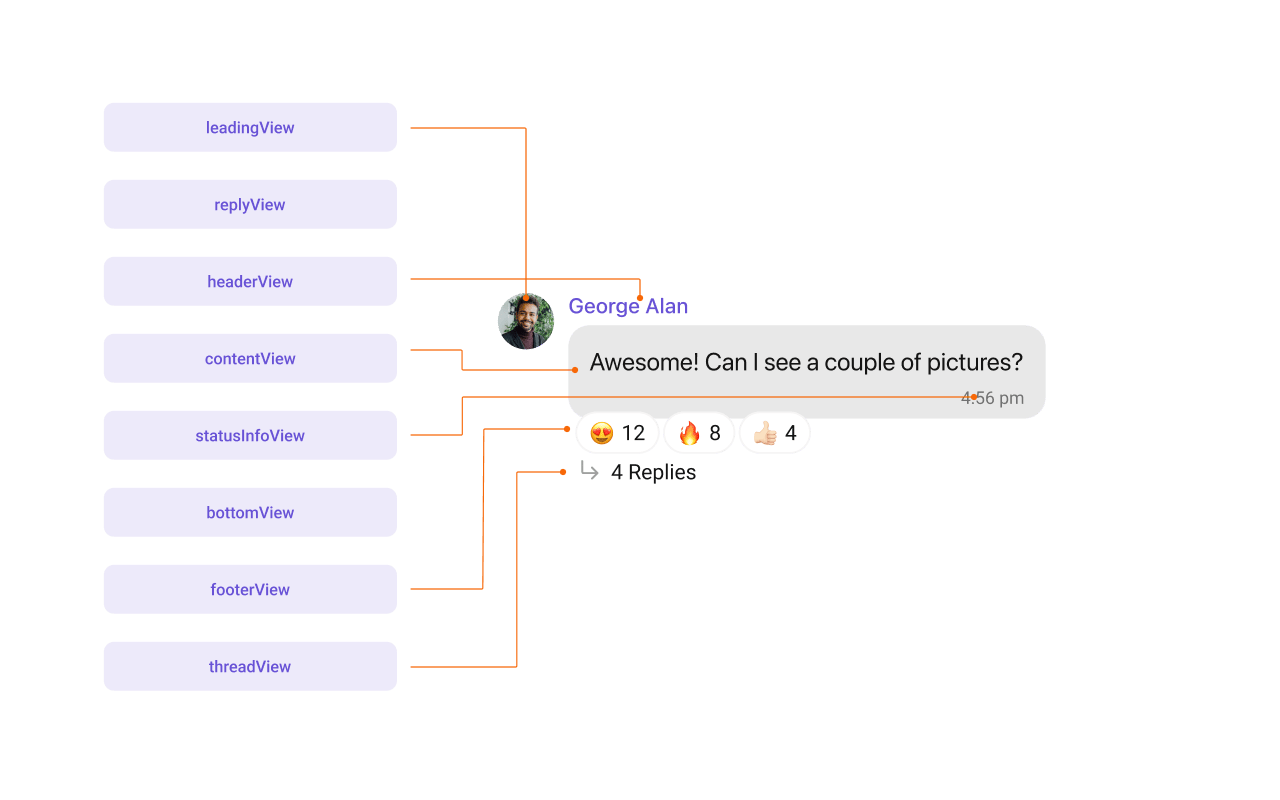
The MessageBubble structure can typically be broken down into the following views:
Leading view: This is where the sender’s avatar is displayed. It’s typically on the left of the MessageBubble for messages from others and on the right for messages from the current user.
Header view: This displays the sender’s name and is especially useful in group chats where multiple users are sending messages.
Reply view: This view can be used to extend the MessageBubble with additional elements. It’s typically placed above the Content view.
Content view: This is the core of the MessageBubble where the message content (text, images, videos, etc.) is displayed.
Bottom view: This view can be used to extend the MessageBubble with additional elements, such as link previews or a ‘load more’ button for long messages. It’s typically placed beneath the Content view.
Thread view:This is where the thread reply icon and reply counts are displayed. It’s located below the footer view.
Footer view: This is where the timestamp of the message and its delivery or read status are displayed. It’s located at the bottom of the MessageBubble.
Status Info view: This is where the timestamp of the message and its delivery or read status are displayed. It’s located inside the MessageBubble just below the content view.
MessageTemplate provides you with methods that allow you to alter various properties of the MessageBubble. These properties include aspects such as the type and category of a message, the appearance and behavior of the header, content, and footer sections of the message bubble,
TypeUsing setType() you can set the type of CometChatMessage, This will map your MessageTemplate to the corresponding CometChatMessage. You can set the MessageTemplates Type using the following code snippet.
let type = "custom_template"//replace this with your own custom type//Creating a custom message templatelet customMessageTemplate =CometChatMessageTemplate(category: category, type: type, contentView: { message, alignment, controller inreturn UIView() //replace this with your own UI for message list }, bubbleView: nil, headerView: nil, footerView: nil) { message, alignment, controller in return UIView() //replace this with your own UI for message composer } options: { message, group, controller in return [CometChatMessageOption]() //replace this with your own options }
Category
Using .setCategory() you can set the category of a MessageTemplate. This will create a MessageTemplate with the specified category and link it with a CometChatMessage of the same category.Please refer to our guide on Message Categories for a deeper understanding of message categories.
let category = "custom_category"//replace this with your own category//Creating a custom message template//You can also set UI for bubbleView, headerView and footerView instead of nillet customMessageTemplate = CometChatMessageTemplate(category: category, type: type, contentView: { message, alignment, controller in return UIView() //replace this with your own UI for message list }, bubbleView: nil, headerView: nil, footerView: nil) { message, alignment, controller in return UIView() //replace this with your own UI for message composer } options: { message, group, controller in return [CometChatMessageOption]() //replace this with your own options }
Header ViewThe .template.headerView method allows you to assign a custom header view to the MessageBubble. By default, it is configured to display the sender’s name.
var allTemplates = CometChatUIKit.getDataSource().getAllMessageTemplates()for (index, template) in allTemplates.enumerated() { var template = template template.headerView = { (baseMessage: BaseMessage?, bubbleAlignment: MessageBubbleAlignment, viewController: UIViewController?) -> (UIView)? in return UIView() }}
Content ViewThe template.contentView method allows you to assign a custom content view to the MessageBubble. By default, it displays the Text Bubble, Image Bubble, File Bubble, Audio Bubble, or Video Bubble, depending on the message type.
var allTemplates = CometChatUIKit.getDataSource().getAllMessageTemplates() for (index, template) in allTemplates.enumerated() { var template = template template.contentView = { (baseMessage: BaseMessage?, bubbleAlignment: MessageBubbleAlignment, viewController: UIViewController?) -> (UIView)? in return UIView() }}
Footer ViewThe template.footerView method allows you to assign a custom Footer view to the MessageBubble. By default, it displays the receipt and timestamp.
var allTemplates = CometChatUIKit.getDataSource().getAllMessageTemplates() for (index, template) in allTemplates.enumerated() { var template = template template.footerView = { (baseMessage: BaseMessage?, bubbleAlignment: MessageBubbleAlignment, viewController: UIViewController?) -> (UIView)? in return UIView() }}
Bottom ViewThe template.bottomView method allows you to assign a custom Bottom view to the MessageBubble.By defuault is has buttons such as link previews or a ‘load more’ button for long messages.
var allTemplates = CometChatUIKit.getDataSource().getAllMessageTemplates() for (index, template) in allTemplates.enumerated() { var template = template template.bottomView = { (baseMessage: BaseMessage?, bubbleAlignment: MessageBubbleAlignment, viewController: UIViewController?) -> (UIView)? in return UIView() }}
Bubble ViewThe template.bubbleView method allows you to assign a custom Bubble view to the MessageBubble. By default, headerView, contentView, and footerView together form a message bubble.
var allTemplates = CometChatUIKit.getDataSource().getAllMessageTemplates() for (index, template) in allTemplates.enumerated() { var template = template template.bubbleView = { (baseMessage: BaseMessage?, bubbleAlignment: MessageBubbleAlignment, viewController: UIViewController?) -> (UIView)? in return UIView() }}
OptionsThe template.options lets you set the list of actions that a user can perform on a message. This includes actions like reacting to, editing, or deleting a message.
var allTemplates = CometChatUIKit.getDataSource().getAllMessageTemplates() for (index, template) in allTemplates.enumerated() { var template = template template.options = { message, group, controller in let loggedInUser = CometChat.getLoggedInUser() let options = CometChatUIKit.getDataSource().getMessageOptions(loggedInUser: loggedInUser!, messageObject: message!, controller: controller, group: group) return options } allTemplates[index] = template}
Let’s dive into how you can use the properties of MessageTemplate to customize an existing template or add a new one to the MessageList component.The First step is to fetch the list of existing templates when you want to modify or add to them. This can be done using the getAllMessageTemplates() method from the DataSource of the CometChatUIKit class.
var messageTemplates : [CometChatMessageTemplate] = CometChatUIKit.getDataSource().getAllMessageTemplates()
You will need to first get the MessageTemplates object for the type of message you want to customize. You will be customizing the TextMessage Bubble here. The code snippet to get the Text MessageTemplate is as follows.
Swift
var messageTemplates : [CometChatMessageTemplate] = CometChatUIKit.getDataSource().getAllMessageTemplates()for i in 0..<messageTemplates.count { if messageTemplates[i].type == "text" && messageTemplates[i].category == "message" { // Set your own content view messageTemplates[i].contentView = { message, alignment, controller in // Create your own content view and return return UIView() } // Set your own bubble view messageTemplates[i].bubbleView = { message, alignment, controller in // Create your own bubble view and return return UIView() } } }let cometChatMessages = CometChatMessageList()cometChatMessages.set(templates: messageTemplates)
You will be using CometChatMessageBubble Component for example here so to apply Template to Messages you will have to use MessageList component.By utilizing this code snippet, you will retrieve text templates.
Ensure to pass and present cometChatMessages. If a navigation controller is already in use, utilize the pushViewController function instead of directly presenting the view controller.
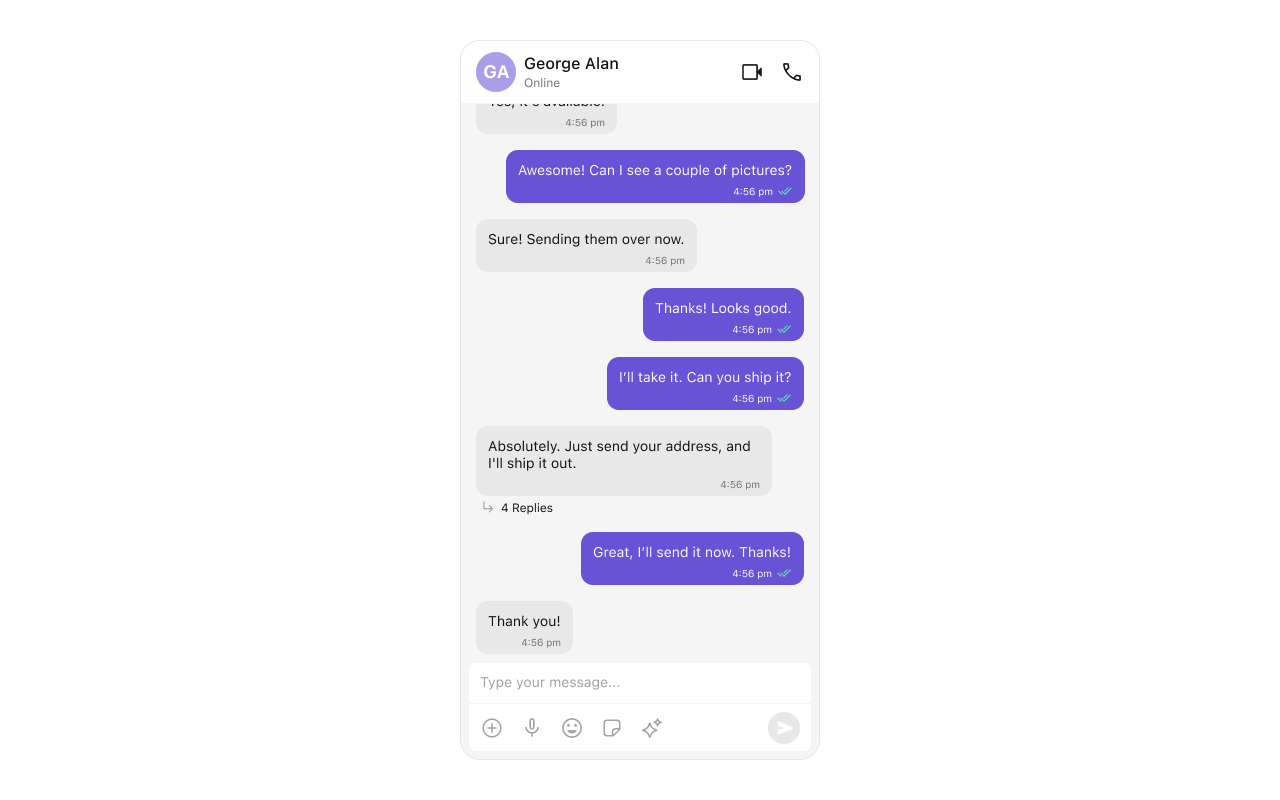
The template.headerView method of MessageTemplate allows you to add custom views to the header of your message bubbles. In the example below, we will add a custom UIView custom_header_view to the header view of every text message in the MessageList.

var allTemplates = CometChatUIKit.getDataSource().getAllMessageTemplates() for (index, template) in allTemplates.enumerated() { var template = template template.headerView = { (baseMessage: BaseMessage?, bubbleAlignment: MessageBubbleAlignment, viewController: UIViewController?) -> (UIView)? in let customHeaderView = HeaderViewStyled() return customHeaderView } allTemplates[index] = template} let cometChatMessages = CometChatMessageList()cometChatMessages.set(templates: allTemplates)
Ensure to pass and present cometChatMessages. If a navigation controller is already in use, utilize the pushViewController function instead of directly presenting the view controller.
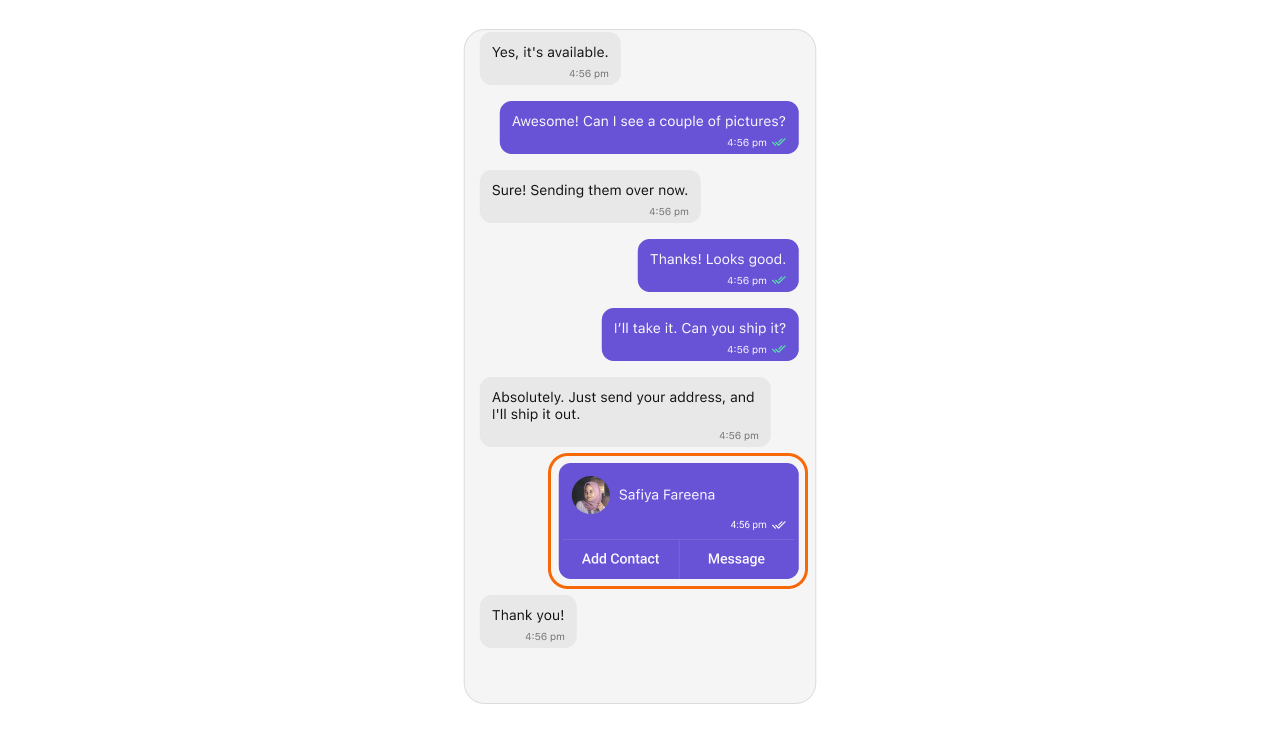
The template.contentView method of MessageTemplate allows you to add a custom view to the content of your message bubbles. In the example below, we will add a custom custom_message_view_file to the content view of every text message in the MessageList.
var allTemplates = CometChatUIKit.getDataSource().getAllMessageTemplates() for (index, template) in allTemplates.enumerated() { var template = template template.contentView = { (baseMessage: BaseMessage?, bubbleAlignment: MessageBubbleAlignment, viewController: UIViewController?) -> (UIView)? in let customView = ContentViewStyled() return customView } allTemplates[index] = template} let cometChatMessages = CometChatMessageList()cometChatMessages.set(templates: allTemplates)
Ensure to pass and present cometChatMessages. If a navigation controller is already in use, utilize the pushViewController function instead of directly presenting the view controller.
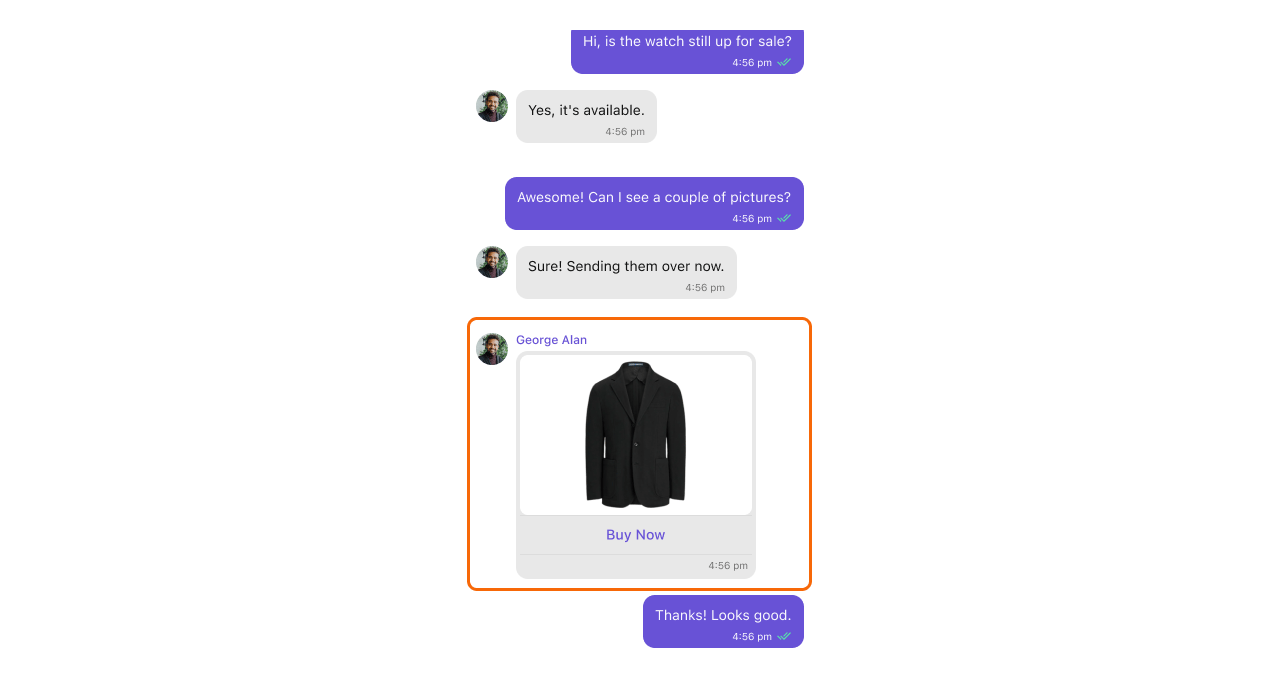
The template.bottomView method of MessageTemplate allows you to add a custom button view to your message bubbles. In the example below, we will add a custom UIView custom_bottom_view_file to the bottom view of every text message in the MessageList.

var allTemplates = CometChatUIKit.getDataSource().getAllMessageTemplates() for (index, template) in allTemplates.enumerated() { var template = template template.bottomView = { (baseMessage: BaseMessage?, bubbleAlignment:MessageBubbleAlignment, viewController: UIViewController?) -> (UIView)? in let customView = BottomViewStyled() return customView } allTemplates[index] = template} let cometChatMessages = CometChatMessageList()cometChatMessages.set(templates: allTemplates)
Ensure to pass and present cometChatMessages. If a navigation controller is already in use, utilize the pushViewController function instead of directly presenting the view controller.
The template.footerView method of MessageTemplate allows you to add a footer view to your message bubbles. In the example below, we will add a custom UIView file custom_footer_view to the bottom view of every text message in the MessageList.

var allTemplates = CometChatUIKit.getDataSource().getAllMessageTemplates() for (index, template) in allTemplates.enumerated() { var template = template template.footerView = { (baseMessage: BaseMessage?, bubbleAlignment: MessageBubbleAlignment, viewController: UIViewController?) -> (UIView)? in let customView = FooterViewStyled() return customView } allTemplates[index] = template} let cometChatMessages = CometChatMessageList()cometChatMessages.set(templates: allTemplates)
Ensure to pass and present cometChatMessages. If a navigation controller is already in use, utilize the pushViewController function instead of directly presenting the view controller.
The template.bubbleView method of MessageTemplate allows you to add a bubble view to your message bubbles. In the example below, we will add a custom UIView custom_bubble_view to the bubble view of every text message in the MessageList.

var allTemplates = CometChatUIKit.getDataSource().getAllMessageTemplates() for (index, template) in allTemplates.enumerated() { var template = template template.bubbleView = { (baseMessage: BaseMessage?, bubbleAlignment: MessageBubbleAlignment, viewController: UIViewController?) -> (UIView)? in let customBubbleView = CustomBubbleView() return customBubbleView } allTemplates[index] = template}let cometChatMessages = CometChatMessages()cometChatMessages.set(templates: allTemplates)
Ensure to pass and present cometChatMessages. If a navigation controller is already in use, utilize the pushViewController function instead of directly presenting the view controller.
The template.options method in the MessageTemplate allows you to customize the options that appear in the action sheet when a message is long-pressed. By default, CometChat UIKit provides a set of options like “Edit”, “Share”, “Translated message”, and “Delete”.However, if you wish to override or modify these options, you can use the template.options method and pass a list of getMessageOptions. This list of options will replace the default set.
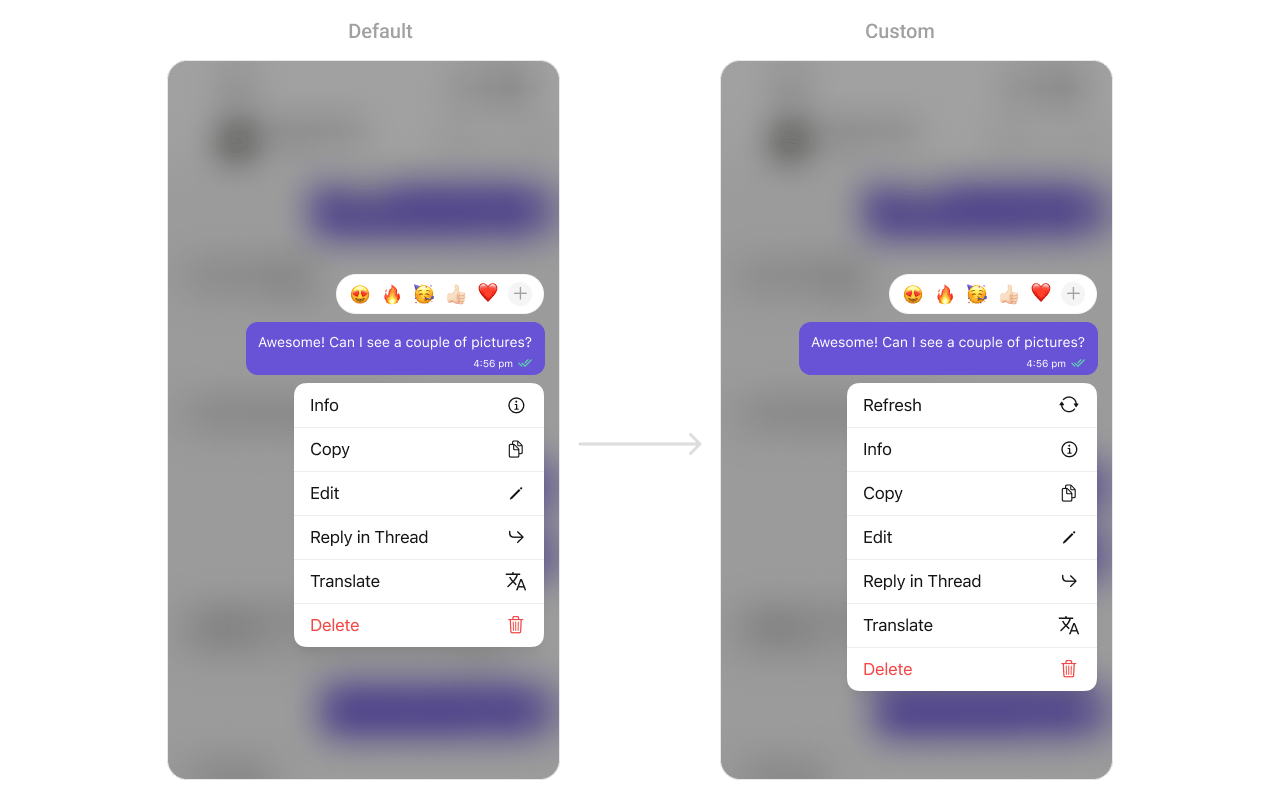
Swiftphp
var allTemplates = CometChatUIKit.getDataSource().getAllMessageTemplates()for (index, template) in allTemplates.enumerated() { var template = template template.options = { message, group, controller in let loggedInUser = CometChat.getLoggedInUser() var options = CometChatUIKit.getDataSource().getMessageOptions(loggedInUser: loggedInUser!, messageObject: message!, controller: controller, group: group) for (index, option) in (options ?? []).enumerated() { if option.id == "replyInThread" { let forwardOption = CometChatMessageOption(id: "customOptionId", title: "Forward", icon: UIImage(systemName: "chevron.right")) let favoriteOption = CometChatMessageOption(id: "favoriteOptionId", title: "Mark as Favorite", icon: UIImage(systemName: "star")) let deleteOption = CometChatMessageOption(id: "deleteOptionId", title: "Delete", icon: UIImage(systemName: "trash")) options?[index...index] = [forwardOption, favoriteOption, deleteOption] } } return options ?? [] } allTemplates[index] = template} let cometChatMessages = CometChatMessageList()cometChatMessages.set(templates: allTemplates)
Ensure to pass and present cometChatMessages. If a navigation controller is already in use, utilize the pushViewController function instead of directly presenting the view controller.
The template.statusInfoView method of MessageTemplate enables you to add a status info view to your message bubbles. This is a user-defined component used to display the statusInfo view, which shows the timestamp and read-receipt of the message.In the example below, we will integrate a custom UIView file named custom_status_view into the status info view of every text message in the MessageList.

custom_status_view
import UIKitimport CometChatSDKimport CometChatUIKitSwiftclass StatusInfoView: UIView { private let timeLabel: UILabel = { let label = UILabel() label.text = "4:56 pm" label.textColor = .gray label.font = UIFont.systemFont(ofSize: 12) label.translatesAutoresizingMaskIntoConstraints = false return label }() private let doubleTickImageView: UIImageView = { let imageView = UIImageView() imageView.image = UIImage(named: "double_tick") // Add your double tick image here imageView.contentMode = .scaleAspectFit imageView.translatesAutoresizingMaskIntoConstraints = false return imageView }() private let timeStackView: UIStackView = { let stackView = UIStackView() stackView.axis = .horizontal stackView.spacing = 4 stackView.alignment = .center stackView.translatesAutoresizingMaskIntoConstraints = false return stackView }() // MARK: - Initialization init(baseMessage: BaseMessage) { super.init(frame: .zero) // Add subviews addSubview(timeStackView) timeStackView.addArrangedSubview(timeLabel) timeStackView.addArrangedSubview(doubleTickImageView) // Constraints for time stack view NSLayoutConstraint.activate([ timeStackView.leadingAnchor.constraint(equalTo: leadingAnchor), timeStackView.topAnchor.constraint(equalTo: bottomAnchor, constant: 4), timeStackView.bottomAnchor.constraint(equalTo: bottomAnchor, constant: -8) ]) NSLayoutConstraint.activate([ doubleTickImageView.widthAnchor.constraint(equalToConstant: 16), doubleTickImageView.heightAnchor.constraint(equalToConstant: 16) ]) if let textMessage = baseMessage as? TextMessage { var status = "Sent" doubleTickImageView.image = UIImage(named: "single-tick") if textMessage.readAt > 0 { status = "Read" doubleTickImageView.image = UIImage(named: "message-read") } else if textMessage.deliveredAt > 0 { status = "Delivered" doubleTickImageView.image = UIImage(named: "double-tick") } let dateFormatter = DateFormatter() dateFormatter.dateFormat = "hh:mm a" let time = dateFormatter.string(from: Date(timeIntervalSince1970: TimeInterval(textMessage.sentAt))) timeLabel.text = "\(time)" } } required init?(coder: NSCoder) { fatalError("init(coder:) has not been implemented") }}
Swift
var allTemplates = CometChatUIKit.getDataSource().getAllMessageTemplates() for (index, template) in allTemplates.enumerated() { var template = template template.statusInfoView = { (baseMessage: BaseMessage?, bubbleAlignment: MessageBubbleAlignment, viewController: UIViewController?) -> UIView? in if let baseMessage = baseMessage { return CustomStatusView(baseMessage: baseMessage) } return nil } allTemplates[index] = template}let cometChatMessages = CometChatMessages()cometChatMessages.set(templates: allTemplates)
Ensure to pass and present cometChatMessages. If a navigation controller is already in use, utilize the pushViewController function instead of directly presenting the view controller.
You can create an entirely new template for custom messages is one of the powerful features of CometChat’s MessageTemplate. To add a new template, you can create a new one and then add it to the list of existing templates.First, let’s see how to send a custom message:
Swift
//Creating a text templatelet textTemplate = CometChatUIKit.getDataSource() .getTextMessageTemplate()// set content view for TextMessage templatetextTemplate.contentView = { message, alignment, controller in // Create your own content view and return return UIView()}// set bubble view for TextMessage templatetextTemplate.bubbleView = { message, alignment, controller in // Create your own bubble view and return return UIView()}//Creating an audio templatelet audioTemplate = CometChatUIKit.getDataSource() .getAudioMessageTemplate()// set content view for AudioMessage templateaudioTemplate.contentView = { message, alignment, controller in // Create your own content view and return return UIView()}// set bubble view for AudioMessage templateaudioTemplate.bubbleView = { message, alignment, controller in // Create your own bubble view and return return UIView()}let type = "custom_template"//replace this with your own custom typelet category = "custom_category"//replace this with your own category//Creating a custom message template//You can also set UI for bubbleView, headerView and footerView instead of nillet customMessageTemplate = CometChatMessageTemplate(category: category, type: type, contentView: { message, alignment, controller in return UIView() //replace this with your own UI for message list }, bubbleView: nil, headerView: nil, footerView: nil) { message, alignment, controller in return UIView() //replace this with your own UI for message composer } options: { message, group, controller in return [CometChatMessageOption]() //replace this with your own options }//custom list of templateslet messageTypes = [ textTemplate, audioTemplate, customMessageTemplate ]var templates = [(type: String, template: CometChatMessageTemplate)]()for template in messageTypes { templates.append((type: template.type, template: template))}//passing template list to cometchatMessages let messageList = CometChatMessageList() messageList.set(templates: templates)