

Quick Reference for AI Agents & Developers
- Component:
CometChatIncomingCall(UIViewController) - Import:
import CometChatUIKitSwift - Usage:
let incomingCall = CometChatIncomingCall()→incomingCall.set(call:)→ present modally - Key actions:
set(onAccept:),set(onDecline:),set(onError:) - Styling:
CometChatIncomingCall.style(global) or instance-level - Related: OutgoingCall · OngoingCall · CallButtons · CallLogs
Overview
TheIncoming call is a Component that serves as a visual representation when the user receives an incoming call, such as a voice call or video call, providing options to answer or decline the call.
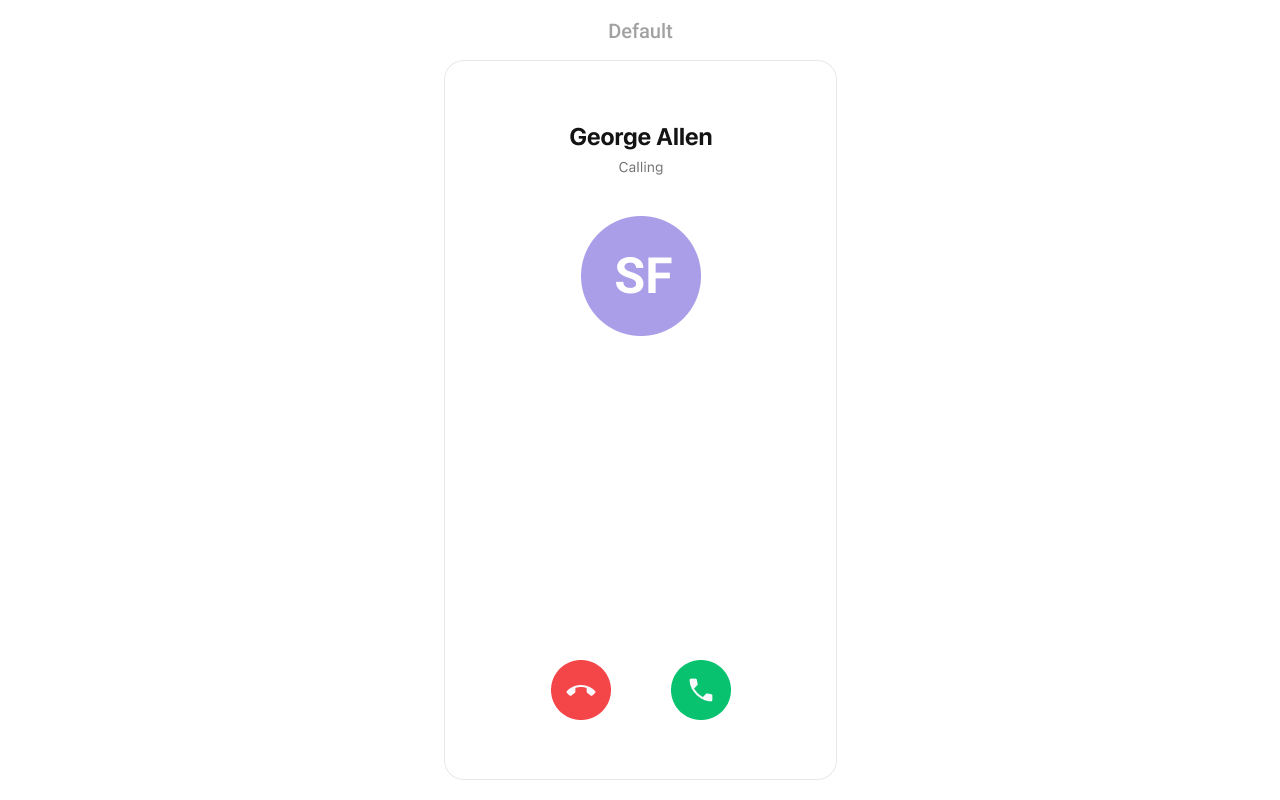
Usage
Integration
CometChatIncomingCall being a custom view controller, offers versatility in its integration. It can be seamlessly launched via button clicks or any user-triggered action, enhancing the overall user experience and facilitating smoother interactions within the application.
- Swift
If you are already using a navigation controller, you can use the
pushViewController function instead of presenting the view controller.Actions
Actions dictate how a component functions. They are divided into two types: Predefined and User-defined. You can override either type, allowing you to tailor the behavior of the component to fit your specific needs.1. SetOnAcceptClick
ThesetOnAcceptClick action is typically triggered when the user clicks on the accept button, initiating a predefined action. However, by implementing the following code snippet, you can easily customize or override this default behavior to suit your specific requirements.
- Swift
2. SetOnCancelClick
ThesetOnCancelClick action is typically triggered when the user clicks on the reject button, initiating a predefined action. However, by implementing the following code snippet, you can easily customize or override this default behavior to suit your specific requirements.
- Swift
3. OnError
You can customize this behavior by using the provided code snippet to override theOn Error and improve error handling.
- Swift
Filters
Filters allow you to customize the data displayed in a list within a Component. You can filter the list based on your specific criteria, allowing for a more customized. Filters can be applied using RequestBuilders of Chat SDK. The IncomingCall component does not have any exposed filters.Events
Events are emitted by aComponent. By using event you can extend existing functionality. Being global events, they can be applied in Multiple Locations and are capable of being Added or Removed.
Events emitted by the Incoming Call component is as follows.
- Add Listener
Emitting Group Events
- Remove Listener
View Controller
Customization
To fit your app’s design requirements, you can customize the appearance of the conversation component. We provide exposed methods that allow you to modify the experience and behavior according to your specific needs.Style
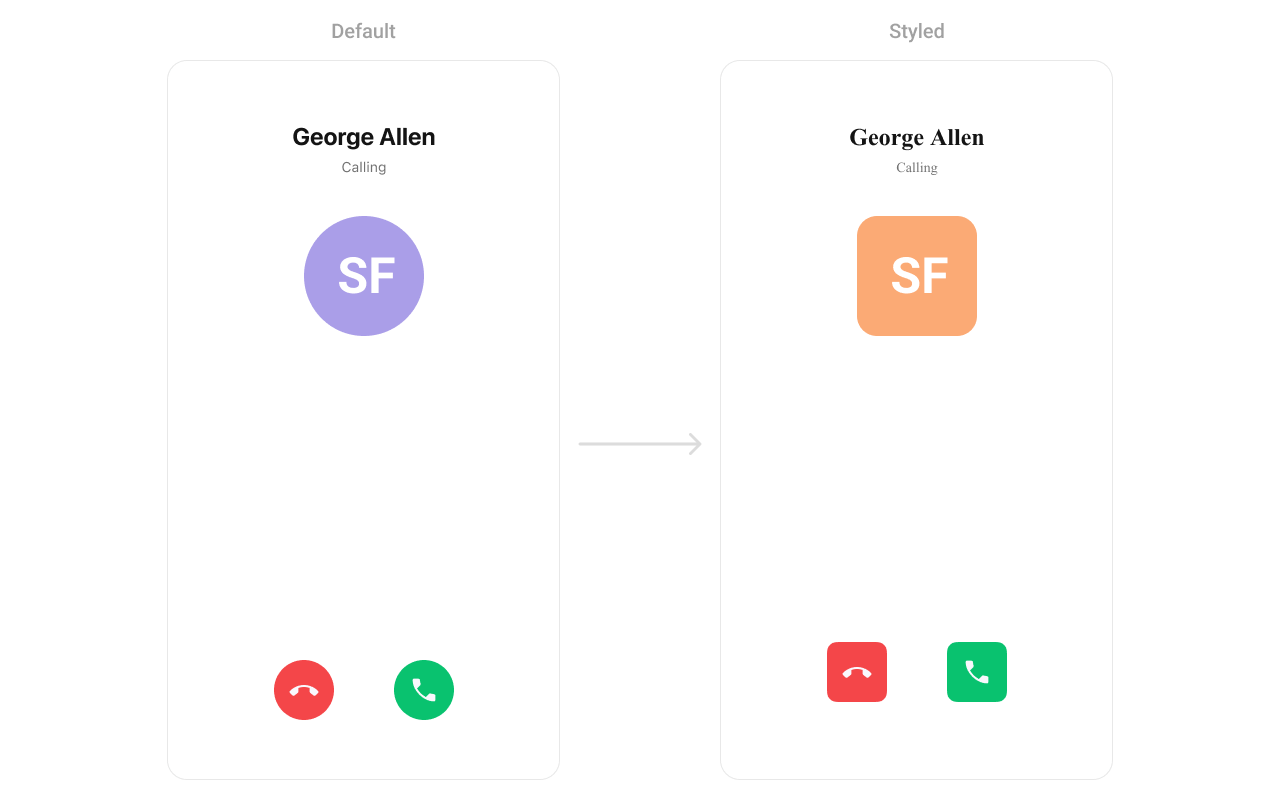
Using Style you can customize the look and feel of the component in your app, These parameters typically control elements such as the color, size, shape, and fonts used within the component.1. IncomingCall Style
You can customize the appearance of theIncomingCall Component by applying the IncomingCallStyle to it using the following code snippet.
Global level styling
- Swift
- Swift
Functionality
These are a set of small functional customizations that allow you to fine-tune the overall experience of the component.Advanced
For advanced-level customization, you can set custom views to the component. This lets you tailor each aspect of the component to fit your exact needs and application aesthetics. You can create and define your views, layouts, and UI elements and then incorporate those into the component.SetListItemView
With this function, you can assign a custom view to the incoming call item view.- Swift
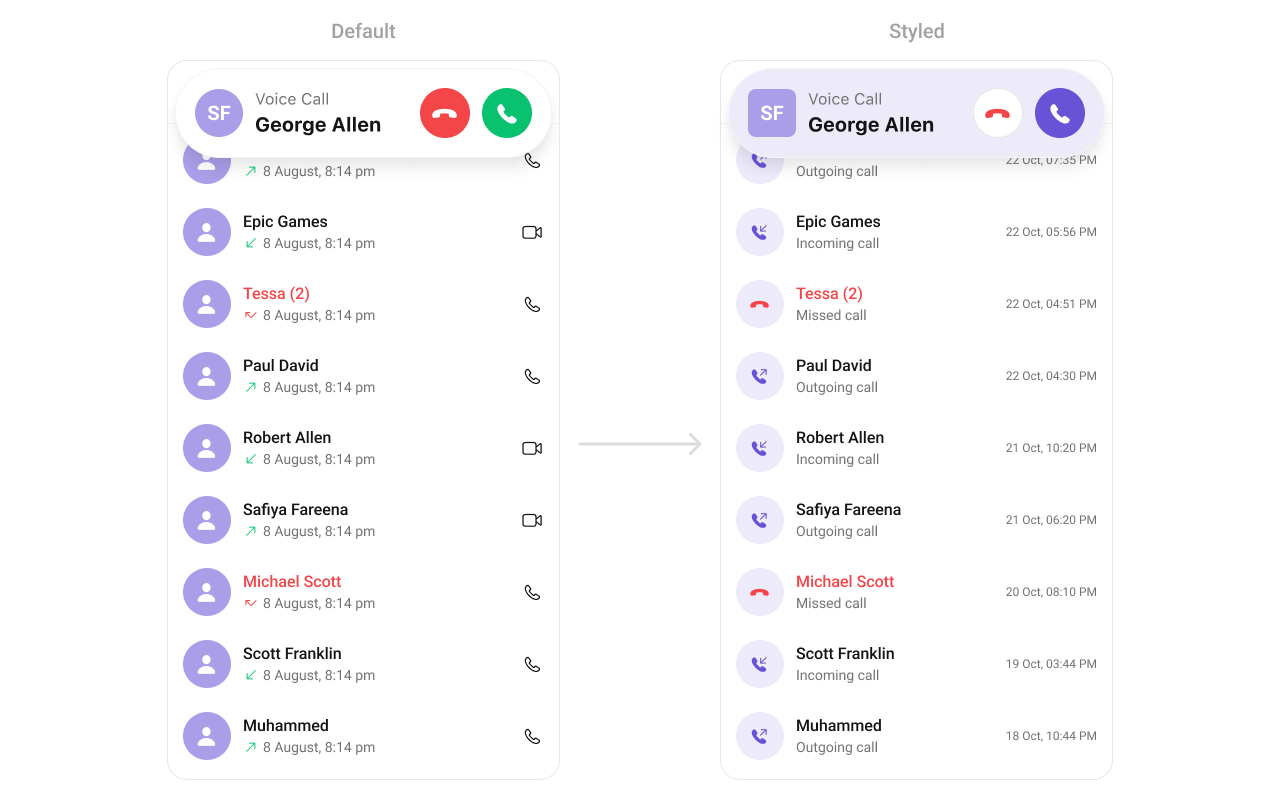
UIView.
swift
SetLeadingView
You can modify the leading view of a Incoming call component using the property below.- Swift

UIView.
- Swift
SetTitleView
You can customize the title view of a incoming call component using the property below.- Swift
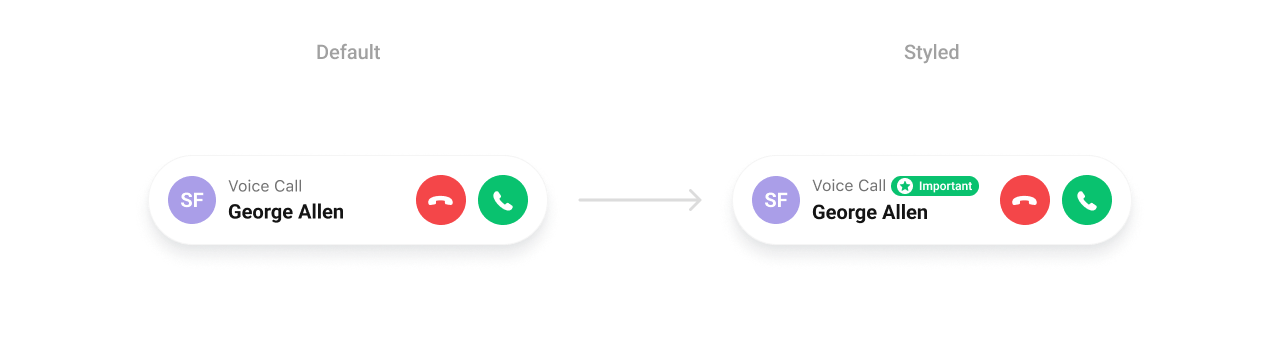
CustomTitleView as a custom UIView. Which we will inflate in setTitleView()
- Swift
Next Steps
Outgoing Call
Manage outgoing call screens
Ongoing Call
Real-time call interface with controls
Call Buttons
Add voice and video call buttons
Call Logs
View call history and details